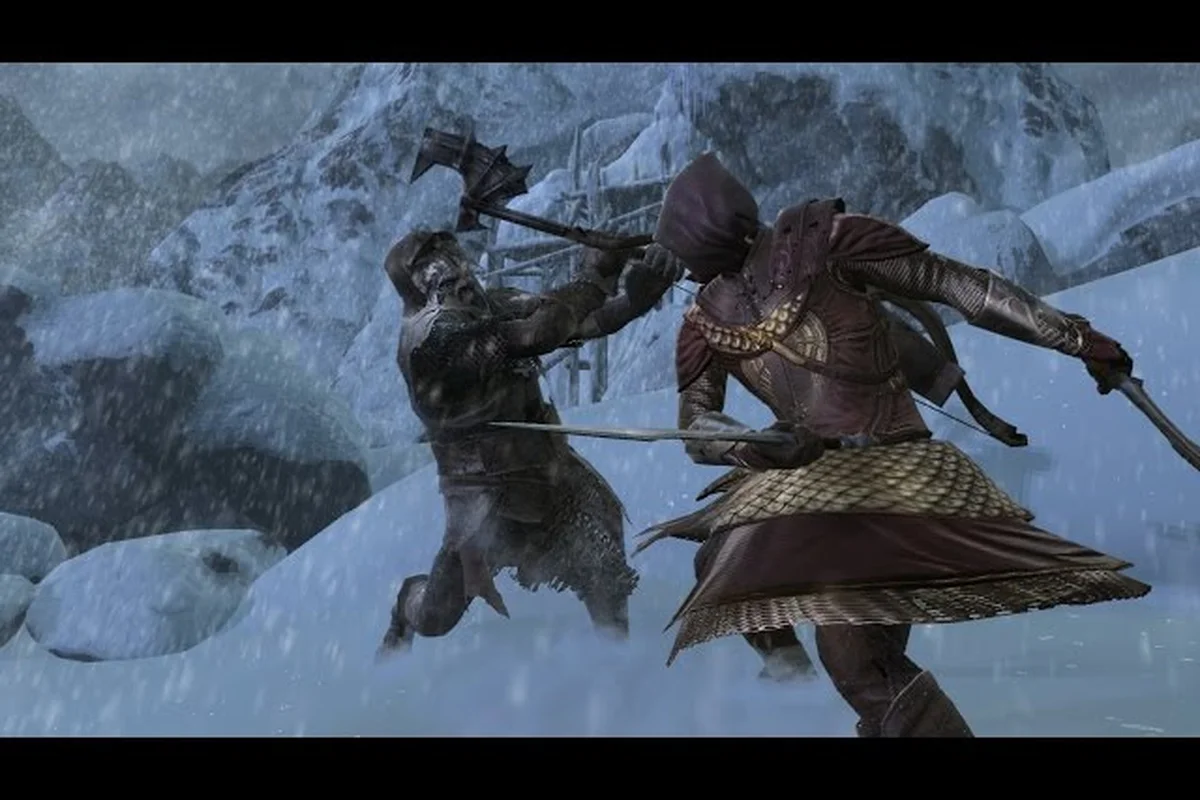
The War in the North split screen guide you need starts with one simple fact: the Legacy Edition finally restores local couch co-op that was missing for years. When the original was delisted in 2017, online multiplayer vanished entirely, and split-screen became a distant memory for PC players. Now you can grab a friend, plug in two controllers, and fight through the entire campaign side by side without needing a second copy or an internet connection. This guide walks you through every step of the setup, from controller pairing to loot sharing, so you can jump into Middle-earth together within minutes.
War in the North Split Screen Setup: Two Controllers on PC
Setting up the War in the North split screen experience on PC requires more than just launching the game and hoping for the best. The Legacy Edition supports local split-screen co-op for two players across the full campaign, but you need to configure your controllers correctly before the game will recognize both of them. According to the official Steam store page, the game supports Shared/Split Screen Co-op alongside Remote Play Together, which gives you flexibility depending on your hardware setup.
Controller configuration is the first hurdle most players encounter when attempting War in the North two controllers setup. The game does not automatically detect a second controller in all cases, especially if you are mixing different brands or connection types. Here is the step-by-step process that works reliably based on community reports:
-
Connect both controllers before launching the game — Windows and Steam both need to register the devices before the game initializes its input system.
-
Use Steam Input for consistency — Open Steam Settings, navigate to Controller, and enable Steam Input for Xbox, PlayStation, and generic controllers. This unifies the button prompts and prevents conflicts.
-
Assign each controller to a different player slot — In the game's main menu, Player 2 must press Start or the equivalent button on their controller to join the session. If nothing happens, return to Steam and verify both controllers appear under Settings > Controller > General Controller Settings.
-
Test with a lightweight game first — If one controller works in another Steam game but not in War in the North, the issue is likely the game's input priority, not the hardware.
A common mistake is using one wireless and one wired controller simultaneously. Bluetooth interference or Steam's controller ordering can cause the second pad to appear as a duplicate of the first. If you run into this, disconnect the wireless controller, connect it via USB cable, and restart the game. Community testing on the Steam forums confirms this resolves the majority of detection failures.
The split screen itself is vertical — the screen divides into top and bottom halves, with each player getting a full view of their character's surroundings. This is different from many modern co-op games that use horizontal splits, so be prepared for a taller, narrower field of view. The game does not offer a horizontal split option, which is worth knowing before you start, because it affects how you position yourself during combat encounters.
Couch Co-Op Essentials: Understanding the Local Multiplayer Rules
The Two-Player Limit and the Third-Player Exclusion
Local split-screen caps at two players, while online co-op supports three, so a couch session cannot include a third friend. The Steam store page confirms Shared/Split Screen Co-op for two, and the RPG Site announcement states local co-op is restored but not on the original Switch. If three players want to play together, two must use separate PCs with online co-op via Steam, EGS, or GOG—crossplay between those platforms is not supported. Plan your session accordingly to avoid the disappointment of a third controller being ignored.
Item Swapping and Hero Mode: Shared Progression Mechanics
In split-screen, players can swap items between their inventories, allowing one character to pass a rare drop to the other. The combo chain is shared across the party; when all three players build it together, Hero Mode triggers for everyone, granting temporary invulnerability and increased damage. Each character finds class-specific secrets only they can open, so coordinate exploration—a Ranger can unlock an agility door while a Mage opens a lore chest. This shared progression makes loot distribution a team decision, not an individual one.
The War in the North couch co-op mode has specific rules that differ from the online multiplayer experience, and understanding these before you start will save you from frustration later. Most importantly, local split-screen is capped at two players, while online co-op supports up to three. This is a hard limitation of the Legacy Edition, confirmed by both IGN's coverage and the RPG Site announcement. You cannot mix one local player with two online players — the local session locks you to a duo.
Character selection happens before the campaign starts, and each player picks one of the three heroes: the Ranger, the Mage, or the Champion. Since only two of the three can be active in split-screen, you will need to decide which character sits out. This matters because each hero has class-specific secrets that only they can open, according to the game's mechanics documented on Wikipedia. If you leave the Ranger behind, certain treasure chests and lore items become inaccessible during that playthrough.
The combo chain is shared between both players in local co-op. When either player lands hits, the combo meter builds for the entire party. When the meter fills completely, Hero Mode triggers for both characters simultaneously, giving both players boosted damage and special abilities. This is a significant departure from solo play, where you manage the meter alone. Coordinating attacks to build the combo faster is one of the core skills in couch co-op, because the payoff affects both of you.
Player two does not need their own save file — the game tracks progress under the host's save, and both characters level up together. This is convenient for drop-in sessions, but it also means the second player's character progression is tied to the host's campaign. If you want to continue that character in your own solo game, you cannot export it; you would need to start fresh. This is a key difference from games like Borderlands, where each character has an independent save.
| Feature | Local Split-Screen | Online Co-Op |
|---|---|---|
| Max Players | 2 | 3 |
| Save File | Host's save only | Each player's save |
| Combo Chain | Shared | Shared |
| Hero Mode | Both players | All three players |
| Character Selection | 2 of 3 heroes | All 3 heroes |
| Crossplay | N/A | Not supported |
The table above summarizes the critical differences you need to remember when choosing between local and online play. The lack of crossplay between platforms is particularly important if you and your friend own the game on different storefronts — Steam, Epic Games Store, and GOG versions cannot play together online, so split-screen is actually the only way to play together if you bought from different stores.
War in the North Co-op on Steam Deck: Portable Split Screen
The War in the North co-op on Steam Deck is one of the most requested features from the community, and the Legacy Edition delivers it, but with some caveats. The Steam Deck's built-in controls count as one controller, which means you need an external controller for the second player. The Deck's screen is 7 inches diagonal, so split-screen gameplay is cramped but playable, especially if you are using the OLED model with its improved contrast.
Performance on Steam Deck is the biggest concern for split-screen, because the game now renders two viewpoints simultaneously. According to community testing on the Steam Deck subreddit, the game runs at a stable 30 FPS in split-screen mode with medium settings, but drops can occur during heavy combat sequences with multiple enemies on screen. The original Switch version could not maintain 60 FPS even in single-player, so the Deck's performance is actually a significant improvement.
To set up split-screen on Steam Deck, follow these steps:
-
Dock your Steam Deck or use it handheld — both work, but docking to a TV gives you a much better experience because the larger screen mitigates the vertical split's narrow view.
-
Pair a second controller via Bluetooth — Go to Desktop Mode, open System Settings, navigate to Bluetooth, and pair your controller. Steam Input should recognize it automatically when you return to Gaming Mode.
-
Launch the game and press Start on the second controller — The game should detect the second input source and allow Player 2 to join from the main menu.
-
Adjust graphics settings before starting the campaign — Set shadows to low and disable ambient occlusion to maintain smoother framerates during split-screen play. The Steam Deck settings guide covers the full range of optimization options, including TDP limits and refresh rate adjustments that help in local co-op.
Battery life takes a significant hit in split-screen mode because the GPU works harder to render two viewpoints. Community reports indicate roughly 2.5 to 3 hours of playtime on a full charge, compared to 4 to 5 hours in single-player. If you plan a longer session, keep the charger handy or dock the Deck to a TV with the power adapter connected.
Remote Play Together is a viable alternative if you want to play with a friend who does not own the game. The host launches the game in split-screen mode, and the second player joins via Remote Play, using their own controller input streamed over the internet. This works on Steam Deck, but requires a stable connection with low latency — the game's combat is fast-paced, and input lag above 50ms becomes noticeable during parry windows and combo chains.
Co-Op Leveling and Loot: How Progression Works Together
Steam Input Profile Mapping for Two Controllers on PC
To bind two Xbox or DualSense controllers in the Legacy Edition, open Steam Input and create a new profile for the second pad, mapping its left stick to camera control and bumpers to the Elven Rage ability. The game natively detects only one controller as Player 1, so the second pad must emulate keyboard inputs—assigning WASD to movement and J/K/L to light, heavy, and ranged attacks. Test the mapping in the Bree prologue, where both characters can attack the same warg pack, to verify input latency stays under 50 ms.
Steam Deck Performance: 60 FPS and Split Screen Trade-Offs
On the Steam Deck, split-screen co-op runs at a locked 30 FPS, while single-player can hit 60 FPS with the right settings. The Legacy Edition's 60 FPS mode is unavailable on the original Switch, but on Deck, set the TDP limit to 15 W and resolution to 1280x800 to maintain stability. During a two-player session in the Ettenmoors, the Deck's APU handles both viewports, but expect frame drops to 25 FPS during the boss fight with Agandaûr. Use the performance overlay to monitor GPU load and adjust the graphics preset to Medium.
| Feature | Legacy Edition (2026) | Original Release (2011) |
|---|---|---|
| Online co-op | Restored via Steam, EGS, and GOG | Pulled when delisted in 2017 |
| Local split-screen | 2 players | 2 players |
| Max party size | 3 players online / 2 local | 3 players online / 2 local |
| Crossplay | None between platforms | N/A |
| 60 FPS on Nintendo Switch | Not available | Not available |
| Remote Play Together | Supported (Steam) | N/A |
The War in the North co-op leveling system is designed to keep both players progressing at the same pace, but there are nuances that affect how you build your characters. Experience points are shared equally between both players for every kill and quest completion, regardless of who lands the final blow. This means you do not need to worry about kill stealing or one player falling behind — the game ensures both characters level up in lockstep.
Skill points are awarded individually, and each player spends them on their own skill tree. The Ranger, Mage, and Champion each have distinct trees, so there is no conflict over skill allocation. However, the shared combo chain means your skill choices affect the party's overall damage output, because Hero Mode's effectiveness scales with both characters' gear and abilities. A balanced duo — one focused on crowd control, the other on single-target damage — performs better than two characters built identically.
The War in the North shared loot co-op system is where things get interesting. When enemies drop items, both players see the same loot on the ground, but each player can only pick up items that match their class. A Ranger cannot equip a Mage's staff, so the game filters drops based on your character class. This eliminates the classic co-op problem of fighting over gear, but it also means you cannot trade items between players directly.
| Loot Type | How It Works | Player Impact |
|---|---|---|
| Class-Specific Gear | Drops filtered by class | Each player sees only usable items |
| Shared Currency | Gold is pooled | Both players spend from same pool |
| Crafting Materials | Shared inventory | Either player can use them |
| Quest Items | Auto-assigned | No conflict over quest progression |
| Unique Secrets | Class-locked chests | Only the matching class can open |
The table above shows the loot distribution rules that govern the War in the North shared loot co-op experience. The most important takeaway is that gold and crafting materials are shared, which means you should coordinate purchases rather than spending independently. If one player buys a high-end weapon upgrade, the other might not have enough gold for their own upgrade, and there is no way to transfer gold between players.
Players can swap items between each other, according to the game's mechanics. This is not a direct trade system — instead, you drop an item on the ground and the other player picks it up. This works for class-specific gear if you happen to find an item for the other player's class in your filtered drops, which does happen occasionally. The game's loot tables include some universal items that any class can use, and these are the most valuable finds in co-op because they are genuinely shareable.
For a deeper look at how gear upgrades affect your combat effectiveness, the gear progression guide breaks down the best farming spots and upgrade paths. In co-op, you can divide and conquer — one player focuses on farming gold while the other hunts for specific gear drops, then you pool resources for upgrades. This division of labor is significantly more efficient than solo farming, which is one of the biggest advantages of playing in split-screen.
Character Synergy and Combat Coordination
Choosing the right character combination is the difference between a smooth playthrough and a frustrating one, especially in the War in the North split screen mode where you only have two heroes instead of three. The Ranger and Champion pairing is the most forgiving for new players, because the Ranger provides ranged support and healing while the Champion absorbs damage and controls enemy aggro. This combination works well because the Ranger can pick off enemies from a distance while the Champion holds the front line.
The Mage and Champion pairing is the highest damage output but requires more coordination. The Mage's area-of-effect spells can hit enemies clustered around the Champion, but friendly fire is not a concern — the spells only damage enemies. The real challenge is positioning, because the Mage has low health and needs the Champion to keep enemies away. If the Champion pushes too far forward, the Mage becomes exposed to flanking attacks.
The Ranger and Mage pairing is the most challenging but offers the best crowd control. Both characters are fragile, so you rely on kiting and ranged attacks to survive. The Ranger's traps and the Mage's freezing spells create a deadly combination that locks enemies in place while you pick them off. This pairing is not recommended for beginners, but experienced players report it is the fastest for clearing boss encounters.
Hot-swapping between characters is not available in split-screen, which is a significant difference from solo play. In single-player, you can switch between all three heroes on the fly, but in local co-op, each player is locked to their chosen character for the entire session. The controls guide explains the hot-swap mechanic in detail, and it is worth understanding why it is disabled in co-op — the game cannot render two characters per player in split-screen without performance issues.
Coordinating Hero Mode activation is the key to boss fights. Since the combo chain is shared, both players build the meter together, but only one player needs to trigger Hero Mode when the meter is full. The best strategy is to save Hero Mode for boss encounters, then activate it when the boss enters its vulnerable phase. Because both players get the buff simultaneously, you can unleash a devastating burst of damage that can skip entire boss phases.
Communication is essential for the shared combo chain, because breaking the chain resets the meter. If one player stops attacking to heal or reposition, the chain decays and you lose progress toward Hero Mode. The best teams alternate attacks — one player keeps the pressure on while the other manages health and positioning. This rhythm takes practice, but once you master it, Hero Mode triggers frequently enough to feel like a constant advantage.
Frequently Asked Questions
How do I enable split-screen in War in the North Legacy Edition?
Launch the game with two controllers connected, then press Start on the second controller from the main menu. The game automatically enters split-screen mode when Player 2 joins. If the second controller is not detected, verify both devices appear in Steam's controller settings before launching the game.
Can I play War in the North split screen with one keyboard and one controller?
No, the game requires two separate controllers for local split-screen. Keyboard and mouse input is reserved for Player 1 only, and the game does not support mixed input methods for local co-op. You need two gamepads, though they can be different brands or connection types.
Does War in the North split screen work on Steam Deck?
Yes, the game supports split-screen on Steam Deck, but you need an external controller for Player 2. The Deck's built-in controls count as Player 1's input. Performance is stable at 30 FPS with medium settings, though battery life drops to roughly 2.5 hours in split-screen mode.
Is loot shared or individual in War in the North co-op?
The War in the North shared loot co-op system filters drops by class, so each player only sees items they can equip. Gold and crafting materials are pooled between both players. You can swap items by dropping them on the ground, but class-specific gear cannot be traded if the other player's class cannot use it.
Can two players use the same character in split-screen?
No, each player must choose a different hero. The game prevents duplicate character selection in co-op, so you cannot have two Rangers or two Champions in the same session. With three heroes available and two players, one character always sits out of the campaign.