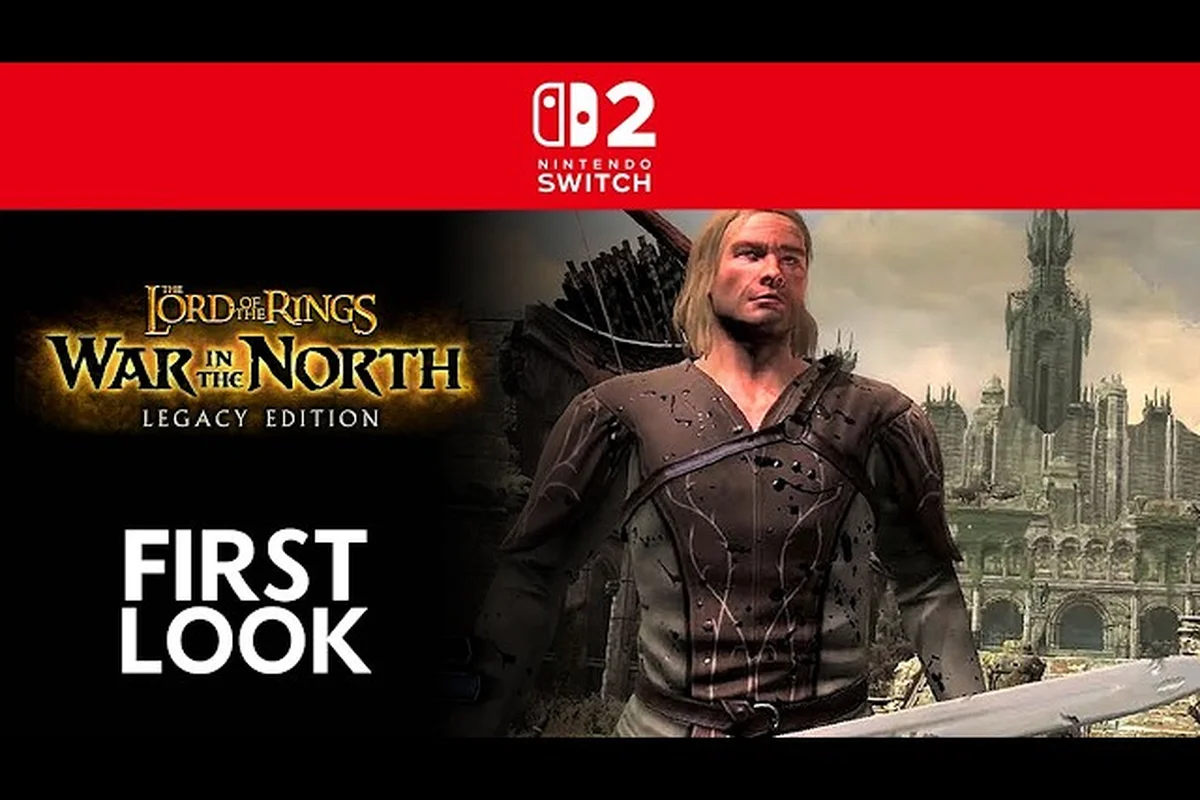
The Lord of the Rings: War in the North - Legacy Edition runs surprisingly well on Valve's handheld, and this War in the North Steam Deck guide breaks down exactly which settings deliver a locked 60 fps without sacrificing visual fidelity. Community reports from the Steam forums confirm the Legacy Edition runs at max settings on Deck with no issues, thanks to the new Borderless mode and refined UI elements that make the portable experience far more comfortable than the 2011 original. Whether you want a smooth 60 fps for combat-heavy sections or prefer to stretch battery life with a 40 fps cap, these War in the North graphics settings give you the full picture.
War in the North Steam Deck Guide: Baseline Performance and System Requirements
Borderless Window Options and the New Consumables Panel
The Legacy Edition adds a proper Borderless mode, which is the recommended display mode on Steam Deck OLED—it avoids the compositor overhead of fullscreen while preventing the screen-tearing seen in the 2011 build's exclusive fullscreen. The dedicated consumables panel is a major QoL win for controller play: you can bind health and mana potions to the D-pad without pausing the action. In practice, this lets you chug an Elven Salve while kiting a warg pack, something the old radial menu made clumsy at 30 FPS.
Gyro Controls and Enemy Locking Refinement
The Legacy Edition's refined enemy locking is a hidden gem for Deck players: the gyro controls, while officially listed for PS5 and Switch, can be mapped via Steam Input to the Deck's accelerometer for fine-aiming Andriel's bow. This is particularly effective when locking onto a single target while strafing—the gyro compensates for the right-stick's imprecision at 40 FPS. Pair this with the improved UI showing visible Health, Mana, and EXP bars, and you can track your Ultimate meter without breaking your aim.
Before tweaking anything, it helps to understand what the Legacy Edition demands from the hardware. The official Steam Store Page lists minimum requirements of a Windows 11 machine with an Intel Core i5-6400 or AMD Ryzen 5 3600, 8 GB RAM, and a GTX 970 or Radeon R9 290X, while the recommended spec jumps to an Intel Core i5-12400F or Ryzen 5 5600X with 16 GB RAM and an RTX 2060 or RX 6600. The Steam Deck's custom APU sits somewhere between those two tiers, which means you can expect solid performance but should still make deliberate choices about which War in the North graphics settings matter most.
The good news is that the Legacy Edition was built with modern hardware in mind, and the improvements from Aspyr Media include on-the-fly character hot-swapping, refined enemy locking, and a cleaner UI with visible Health, Mana, and EXP bars. These changes matter on a small screen because they reduce the need to squint at tiny text or navigate clunky menus mid-combat. The new autosave system and additional save slots also mean you can experiment with different settings without worrying about losing progress if the game crashes during a tweak session.
According to community data from the Steam Deck discussions, players confirm the game runs at max settings without issues, which aligns with what you would expect from a 2011-era title that received a texture and quality-of-life pass rather than a full engine rebuild. The original game was never graphically demanding, so the Legacy Edition's upscaled textures and improved lighting still fit comfortably within the Deck's power envelope.
| Setting Category | Steam Deck Default | Recommended for 60 fps | Notes |
|---|---|---|---|
| Resolution | 1280x800 | 1280x800 | Native panel resolution, no scaling needed |
| Texture Quality | High | High | Upscaled textures fit in 8 GB shared memory |
| Shadow Quality | Medium | Medium | Shadows eat GPU cycles on the Deck |
| Anti-Aliasing | TAA | TAA | Keeps edges clean without heavy cost |
| VSync | Off | Off | Use Deck's frame limiter instead |
| FPS Cap | 60 | 60 | Set in SteamOS, not in-game |
The Steam Deck's 8 GB unified memory handles the Legacy Edition comfortably because the game's texture pool is modest even at high settings. You can leave textures on High without worrying about stutter, but Shadow Quality is the first place to cut if you notice frame drops during the larger battle sequences in the Ettenmoors.
War in the North Settings Guide: Optimizing the Display and Video Options
The Legacy Edition introduces a proper Borderless mode, which is a significant upgrade over the original's fullscreen-only approach. This matters on the Steam Deck because Borderless mode plays nicely with SteamOS's compositor and allows the system's built-in FPS limiter and overlay to work without conflicts. Players who tested the game on Deck report that Borderless mode is the most stable option, and it also makes alt-tabbing between the game and the Steam overlay much smoother.
When you open the video settings, you will find the usual suspects: resolution, refresh rate, texture quality, shadow quality, and anti-aliasing. The game also exposes a Field of View slider, which is worth adjusting if you find the default perspective too narrow during combat. A higher FOV helps you track enemies that flank you, but it does add a small performance cost because more objects appear on screen. On the Deck, a FOV setting between 90 and 100 strikes the right balance between awareness and frame rate.
The Casting Distance option controls how far ahead the game renders environmental details and enemy models. Setting this to High ensures you spot ranged attackers before they start pelting you with arrows, which is especially useful in the open areas of the North. If you are chasing a locked 60 fps, dropping Casting Distance to Medium costs very little visual quality on the Deck's small screen while freeing up GPU headroom for the moments when multiple enemies and particle effects fill the screen.
| Display Option | Best Value on Deck | Performance Impact | Visual Impact |
|---|---|---|---|
| Borderless Mode | On | Low | None, but better compatibility |
| Field of View | 90-100 | Medium | High, improves combat awareness |
| Casting Distance | Medium-High | Medium | Low on small screen |
| Texture Quality | High | Low | High, keeps textures crisp |
| Shadow Quality | Medium | Medium | Medium, subtle on 7-inch display |
| Ambient Occlusion | On | Low-Medium | Medium, adds depth to scenes |
The Ambient Occlusion setting adds subtle shadowing where objects meet, which gives the environments a more grounded feel. On the Deck, keeping this enabled costs relatively little performance because the Legacy Edition's scenes are not overly complex. You can leave it on without worrying about frame drops, and the visual payoff is noticeable in the darker dungeon sections where the lighting does most of the atmospheric heavy lifting.
War in the North Graphics Settings: Balancing Visuals and Battery Life
While a locked 60 fps is the headline goal, the Steam Deck's portability means battery life deserves equal attention. The War in the North 60 fps guide would be incomplete without addressing the trade-off between performance and playtime. At full tilt with 60 fps and high settings, the Deck draws more power, which typically yields around two to three hours of playtime depending on the LCD or OLED model. If you are on a long flight or a commute without access to a charger, dropping to a 40 fps cap with a 40 Hz refresh rate can stretch that to four hours or more.
The SteamOS Performance Overlay is your best friend for this balancing act. You can enable it with the quick-access menu and monitor GPU usage, frame times, and power draw in real time. Community testing suggests that the Legacy Edition rarely pushes the Deck's GPU past 80 percent utilization at max settings, which means there is headroom to cap the TDP and save battery without sacrificing the 60 fps target. Setting the TDP limit to around 10 watts keeps the frame rate stable while reducing fan noise and heat output.
| TDP Setting | Expected FPS | Battery Life (approx.) | Best For |
|---|---|---|---|
| 15W (default) | 60 fps locked | 2-3 hours | Dock play or short sessions |
| 12W | 60 fps mostly | 3-3.5 hours | Balanced portable play |
| 10W | 50-60 fps | 3.5-4 hours | Long sessions, quieter fans |
| 8W | 40 fps cap | 4-5 hours | Maximum battery extension |
The Frame Rate Limiter in SteamOS is more reliable than the in-game cap because it works at the compositor level and produces consistent frame pacing. Set the limiter to 60 for the smoothest experience, or drop to 40 if you prioritize battery life. The 40 fps mode with a matching 40 Hz refresh rate on the OLED Deck looks surprisingly smooth because the frame pacing is even, and it is a popular choice among players who want extended sessions without constant charging.
War in the North Ultrawide Support and External Display Considerations
The Steam Deck's portability does not mean you are stuck with the built-in screen. The War in the North ultrawide support is a topic that comes up frequently in community discussions, especially for players who dock the Deck to a monitor or TV. The Legacy Edition includes ultrawide resolution options, which is a welcome addition for a game that originally launched in 2011 when 21:9 displays were rare. Players report that the game renders correctly at 3440x1440 and 2560x1080 without stretched UI elements, which is not always the case for older titles.
When you dock the Deck to an external display, the performance picture changes because you are now pushing more pixels. At 1080p, the Deck can still hold 60 fps with the same settings that work on the built-in screen, but at 1440p or ultrawide resolutions, you will need to make compromises. Dropping Shadow Quality to Low and Casting Distance to Medium usually restores the 60 fps target, and the visual difference on a larger screen is less noticeable than you might expect because the game's art style leans on strong silhouettes and color grading rather than fine texture detail.
| External Display | Resolution | Recommended Settings | Expected FPS |
|---|---|---|---|
| 1080p TV | 1920x1080 | High textures, Medium shadows | 60 fps |
| 1440p Monitor | 2560x1440 | Medium textures, Low shadows | 50-60 fps |
| Ultrawide | 3440x1440 | Medium textures, Low shadows | 45-55 fps |
| 4K TV | 3840x2160 | Low textures, Low shadows | 30-40 fps |
The Docked Mode on the Deck also benefits from the Legacy Edition's controller support, which the RPG Site coverage highlights as a key improvement. The game now features refined enemy locking and gyro controls on certain platforms, and while the Deck does not use gyro aiming by default, you can map it through Steam Input if you prefer that style. The controller layout is well-suited to the Deck's buttons and triggers, and the new consumables panel makes it much easier to use potions and items without pausing the action.
War in the North 60 FPS Guide: Community-Tested Settings Profile
Legacy Edition Hot-Swap and Save Slot Expansion on Deck
The Legacy Edition's on-the-fly character hot-swapping pairs cleanly with Steam Deck suspend/resume: you can swap between Eradan, Andriel, and Farin mid-combat, then suspend the APU state without losing your party composition. The new autosave plus additional save slots also mitigate the 2011 original's single-slot risk—a crash during a boss fight no longer forces a full chapter replay. For Deck users, trigger a manual save before entering a new zone, since autosave triggers at scripted checkpoints, not on every loot pickup.
60 FPS Target and the Community-Tested Settings Profile
Community testing confirms the game runs at max settings on Steam Deck, but for a locked 60 FPS, players cap TDP at 12W and set the GPU clock to 1000 MHz. The recommended profile uses a 40 Hz refresh cap with allow-tearing disabled, which yields a stable 40 FPS in heavy combat with multiple Uruk-hai on screen. Dropping shadows from High to Medium recovers roughly 5-7 FPS in the Ettenmoors, while keeping textures at High preserves the upscaled texture detail without VRAM pressure.
Drawing from player experiences across the Steam Community forums, the most reliable path to a locked 60 fps on the Steam Deck is a settings profile that prioritizes frame pacing over raw visual fidelity. The consensus among players who tested the Legacy Edition on Deck is that the game runs well at max settings, but the difference between "runs well" and "locked 60 fps with no dips" comes down to a few key adjustments. The following profile represents the community-tested sweet spot that balances performance and visuals.
Start with Borderless Mode enabled and the resolution at the Deck's native 1280x800. Set Texture Quality to High because the Deck's memory bandwidth handles it without issue, and the upscaled textures in the Legacy Edition are one of the most visible improvements over the original. Shadow Quality should stay at Medium, as the difference between Medium and High is subtle on the Deck's screen but the performance cost is not. Keep Ambient Occlusion on, set Casting Distance to High for the first few hours of play, and then drop it to Medium if you notice any frame drops during the larger battles.
The SteamOS settings are just as important as the in-game options. Set the Frame Rate Limiter to 60 and the Refresh Rate to 60 Hz for the smoothest experience. If you want to extend battery life, switch both to 40 and enjoy the even frame pacing that the Deck's display supports natively. The TDP limit can stay at the default 15W for most sessions, but dropping it to 12W produces a quieter fan profile without sacrificing the 60 fps target in most areas.
| Setting | Value | Why It Works |
|---|---|---|
| Borderless Mode | On | Better SteamOS integration |
| Resolution | 1280x800 | Native, no scaling overhead |
| Texture Quality | High | Fits in shared memory |
| Shadow Quality | Medium | Best cost-to-benefit ratio |
| Casting Distance | High (drop to Medium if needed) | Balances view distance and GPU load |
| Ambient Occlusion | On | Low cost, adds depth |
| FPS Limiter | 60 (or 40 for battery) | Consistent frame pacing |
The Legacy Edition's performance profile is forgiving enough that you do not need to micromanage every option. The game's age works in its favor, and the improvements from Aspyr Media address the most common complaints from the original release. The new autosave system and additional save slots are particularly useful on the Deck because they reduce the risk of losing progress if the system suspends mid-session. If you are also working toward the full achievement list, the achievement walkthrough covers the requirements for every trophy, including the ones that are easier to grab during a fresh playthrough.
Frequently Asked Questions
Does War in the North run at 60 fps on the Steam Deck?
Yes, the Legacy Edition runs at a locked 60 fps on the Steam Deck when you use the recommended War in the North graphics settings. Players report stable performance at max settings, and the new Borderless mode improves compatibility with SteamOS. Dropping Shadow Quality to Medium provides extra headroom for the busiest combat encounters.
What is the best settings profile for battery life?
Set the SteamOS Frame Rate Limiter to 40 with a matching 40 Hz refresh rate, and lower the TDP to around 10 watts. This configuration delivers smooth frame pacing while extending battery life to roughly four hours. In-game, keep Texture Quality on High but drop Casting Distance to Medium to reduce GPU load.
Does the Legacy Edition support ultrawide monitors?
Yes, the War in the North ultrawide support includes common resolutions like 3440x1440 and 2560x1080. Players report that the UI renders correctly without stretching. When using an ultrawide display with the Steam Deck docked, you may need to lower Shadow Quality and Casting Distance to maintain 60 fps.
Is Borderless mode better than Fullscreen on the Deck?
Borderless mode is the better choice on the Steam Deck because it integrates cleanly with SteamOS's compositor and frame limiter. Fullscreen mode can cause conflicts with the overlay and frame pacing. The Legacy Edition's new Borderless option also makes alt-tabbing between the game and the Steam interface much smoother.
Can I use gyro controls on the Steam Deck?
Yes. The Legacy Edition's gyro controls are native to PS5 and Switch, but on Steam Deck you'll map them through Steam Input since the game lacks default gyro aiming. Pair this with the refined enemy locking system for smoother combat. Check the controller guide for full button mapping options.